Documentation
Fill any online form in seconds. Import your CSV or Excel data, map fields visually, and let Papeleo handle the rest — all without your data ever leaving your device.
Getting Started
Installation
Install Papeleo from the Chrome Web Store or the Firefox Add-ons page. After installation, you’ll see the Papeleo icon in your browser toolbar.
On Chrome, clicking the icon opens Papeleo as a side panel — a persistent panel on the right side of the browser that stays open while you interact with forms. On Firefox, it opens as a traditional popup.
Welcome Screen
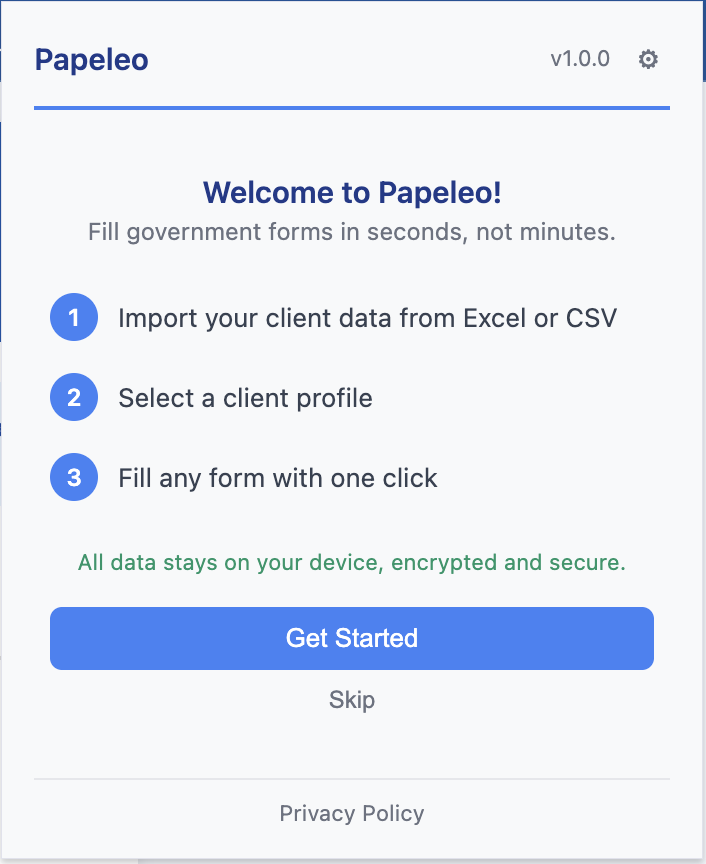
The first time you open Papeleo, a welcome screen walks you through the basics:
- Import your data from a CSV or Excel file.
- Select a record and click Fill.
- Map fields for sites that need custom configuration.
Click Get Started to proceed to password setup.
Setting Your Password
Before you can store any data, you must set an encryption password:
- Enter a password of at least 8 characters.
- A strength indicator shows real-time feedback as you type (Weak / Fair / Strong).
- Confirm the password.
- Click Set Password.
Important: This password cannot be recovered. If you forget it, you will need to reset the extension and re-import your data.
After setting your password, you’ll be prompted to open Settings and import your first file.
Importing Data
Supported File Formats
| Format | Extension | Notes |
|---|---|---|
| CSV | .csv | Comma-separated values (UTF-8) |
| Excel | .xlsx | Excel 2007+ (Open XML) |
| Legacy Excel | .xls | Older Excel format |
How to Import
- Open Papeleo and click the gear icon (top right), or click Open Settings to Import if no data has been imported yet.
- In the Collections tab, click Import File and select your file.
- Papeleo parses the file and shows you a column mapping interface.
Import Destination
After mapping columns, choose where to import your data:
- Create new collection — Creates a fresh collection. The name defaults to the filename, and you can change it before importing.
- Add to existing collection — A dropdown shows your existing collections with record counts. If the new file has different columns than the target collection, a compatibility warning appears (you can still proceed).
Entity Type Detection
Before column mapping, Papeleo analyzes your file headers to detect what kind of data you’re importing:
| Entity Type | Description | Example Fields |
|---|---|---|
| Person | People, clients, employees | name, tax ID, email, address, date of birth |
| Product | Marketplace listings | title, price, description, category, brand |
| Vehicle | Auto inventories | make, model, year, mileage, fuel type, VIN |
| Property | Real estate listings | address, square meters, rooms, price, year built |
| Generic | Any other data | No canonical mapping — columns kept as-is |
Papeleo scores your headers against each schema’s field aliases and signature fields. If it finds a match above a confidence threshold, it pre-selects that type and shows the detection confidence (e.g., “Detected: Person (75%)”).
You can override the auto-detection by selecting a different entity type. Changing the type re-runs column mapping with the new schema’s fields.
Column Mapping
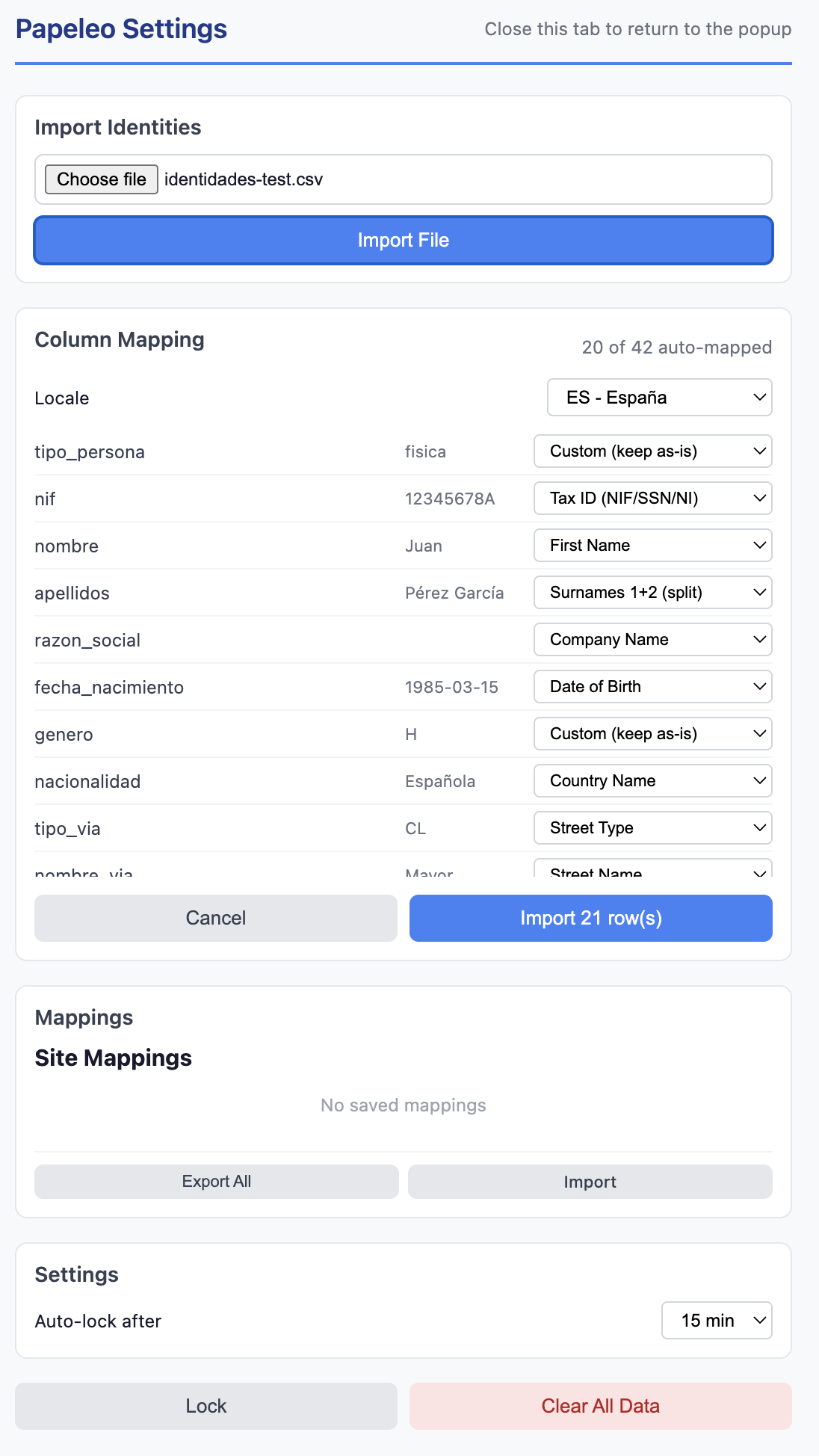
After entity type selection, Papeleo displays each column from your file alongside a dropdown to map it to a canonical field:
- Auto-mapping: Papeleo automatically detects common fields (e.g., “nombre” → First Name, “nif” → Tax ID). The status bar shows how many fields were auto-detected (e.g., “4 of 12 auto-mapped”).
- Manual adjustment: Use the dropdown to change any mapping. Options include:
- Canonical fields grouped by category (Name, ID, Contact, Address, Financial, Other)
- Skip — Ignore this column entirely.
- Custom (keep as-is) — Store the value with its original column name.
- Surnames 1+2 (split) — Split a combined surname field into first and second surnames.
- Sample preview: Each row shows a sample value from the first data row as a hint.
Locale Selection
Choose a locale to control how data is interpreted and which field aliases are used:
| Locale | Date Format | Example Aliases |
|---|---|---|
| ES - Spain | dd/mm/yyyy | nombre, apellidos, nif, código postal |
| US - United States | mm/dd/yyyy | first name, SSN, zip code |
| UK - United Kingdom | dd/mm/yyyy | forename, NI number, postcode |
| Generic | dd/mm/yyyy | Standard English field names |
Collision Detection
If you map two or more columns to the same canonical field, Papeleo shows a warning banner:
“2 collision(s) detected: multiple columns map to the same field.”
Colliding rows are highlighted with an amber background and a (!) badge. The import can still proceed — the last column’s value will be used for that field.
Validation Warnings
Papeleo validates data formats during import. If issues are found, a banner appears:
“3 validation warning(s) found. Data will be imported but may not match expected formats.”
Each warning shows the row number, column, value, and reason (e.g., unexpected date format, invalid NIF checksum).
Completing the Import
Click Import [N] row(s) to finalize. You’ll see a confirmation:
“12 records imported successfully”
The status bar shows your record count, import date, and storage used.
Template Download
You can download a blank CSV template for each entity type (Person, Product, Vehicle, Property) from the import screen. Templates use localized column headers that auto-map when you re-import the filled file — no manual mapping needed.
Duplicate Detection
When importing into an existing collection, Papeleo checks for duplicates. If it finds records that already exist (matched by Tax ID for persons, or full-row match for other types), a warning banner appears showing how many duplicates were found. You can choose to skip duplicates or import them anyway.
CSV Examples
There are no required columns — any valid CSV or XLSX works. Here are some examples:
Client data for accountants:
tax_id,first_name,last_name,address,postal_code,city,province,email,phone
12345678A,Juan,Pérez García,Calle Mayor 1,28001,Madrid,Madrid,juan@example.com,600123456
B12345678,Company SL,,Main Avenue 10,08001,Barcelona,Barcelona,info@company.com,931234567
Employee data:
name,id_number,date_of_birth,position,department,start_date
Ana López,87654321B,1990-03-15,Analyst,Accounting,2024-01-10
Pedro Ruiz,11223344C,1985-07-22,Director,Sales,2023-06-01
Product catalog:
title,description,price,condition,category,brand
iPhone 14 Pro 256GB,Impeccable condition 95% battery,750,Used - Like new,Phones,Apple
Nike Air Max 90,Size 43 unworn with box,85,New,Sneakers,Nike
Vehicle stock:
make,model,year,km,fuel,price,color,extras
Toyota,Corolla,2021,35000,Hybrid,22500,White,Navigator;Rear camera
Volkswagen,Golf,2020,48000,Diesel,19800,Grey,Climate control;Parking sensors
Children’s data:
name,last_name,date_of_birth,allergies,health_card,emergency_contact
Lucía,Pérez García,2018-05-12,None,ES28012345678,600123456
Pablo,Pérez García,2020-11-03,Tree nuts,ES28012345679,600123456
Download Sample Files
Ready-to-import CSV files with 10 realistic records each — available on the Downloads page.
Collections
Collections let you organize your data into separate groups — for example, personal records, business contacts, or different clients.
What Is a Collection?
Each collection is an independent dataset with its own records, column headers, entity type, and locale. Collections are encrypted separately and can be managed individually.
Switching Collections
When you have more than one collection, a dropdown appears at the top of the panel showing the active collection name and record count. Select a different collection to switch — the record list updates immediately.
Collection Browser
In Settings > Collections, you can see all your collections in a card layout. Each card shows:
- Collection name
- Record count, column count, storage size, and creation date
- An Active badge on the currently selected collection
- Entity type badge (Person, Product, Vehicle, Property, or Generic)
Click a card to open its detail view, which shows all records in that collection. Use the Back button to return to the collection list.
Managing Collections
From the collection browser, you can:
- Activate — Set a collection as the active one (star icon).
- Rename — Change the collection name (pencil icon).
- Export as CSV — Download any collection as a CSV file from the collection browser.
- Refresh — One-click re-import from the original file with saved column mappings. Useful when your source spreadsheet has been updated.
- Delete — Remove a collection and all its records (trash icon). This cannot be undone.
Label Columns
By default, record cards show the first columns of your data. You can pick up to 3 columns per collection to display as record labels — for example, show Name, Tax ID, and City instead of the default. Configure this from the collection detail view.
Storage Tracking
Each collection card displays its storage size. If total usage across all collections exceeds 50 MB, a warning appears.
Filling Forms
Selecting a Record
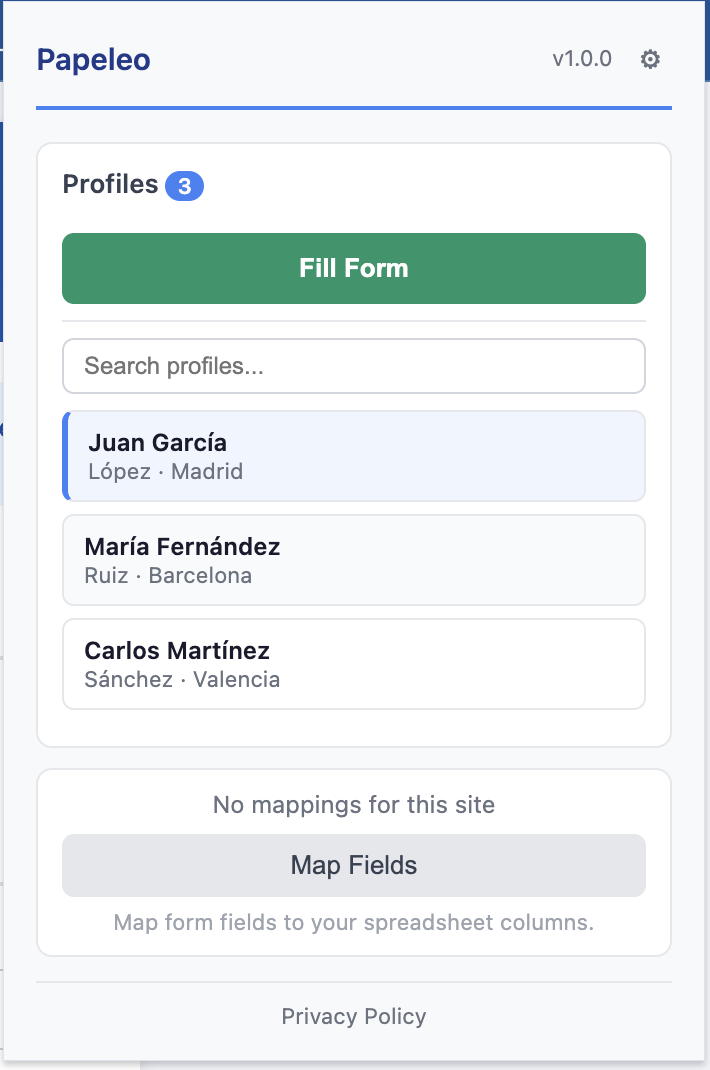
- Open Papeleo on any web page.
- Browse your records or use the search bar to filter by name or any column value. If you have multiple collections, make sure the right one is active (see Collections).
- Click a record card to select it. Click again to deselect.
The Fill Process
Papeleo uses a two-step preview-then-fill approach:
- Click “Fill Form” — Papeleo scans the page for form fields and highlights the ones it can fill (see Preview Mode).
- Review the highlights — Green-outlined fields show what will be filled.
- Click “Confirm Fill” — Papeleo writes the values into the form fields.
Tip: In side panel mode (Chrome), the panel stays open during the entire fill flow, so you can review results and fill again with a different record without reopening anything.
After filling, a result message appears:
“Filled 8 of 12 fields (7 verified)”
- Filled X of Y — X fields were filled out of Y total form fields detected.
- Verified — Papeleo double-checks that values were actually set correctly (some frameworks may override values).
“Clear First” Option
The Clear first checkbox (checked by default) clears all form fields before filling. This is useful when:
- Re-filling a form with a different record.
- The form has pre-filled values you want to replace.
- Previous partial fills left stale values in some fields.
When enabled, Papeleo resets text inputs to empty, unchecks checkboxes, and resets dropdowns to their first option before writing new values.
Filling in Iframes
Papeleo automatically detects forms inside iframes on the same page and fills them alongside the main frame. Results are aggregated into a single summary. Split date fields (day/month/year) are also handled correctly inside iframes.
Copy-Paste Fallback
If a field can’t be filled automatically (e.g., a complex custom widget), you can click any field value in the record detail view to copy it to the clipboard, then paste it manually.
Readonly and Disabled Fields
Papeleo automatically skips fields marked as readonly, disabled, or aria-readonly. These fields are excluded from both preview and fill, so the fill count only reflects fields that can actually be written to.
Preview Mode
When you click Fill Form, Papeleo enters preview mode before writing any values.
What Happens During Preview
- Papeleo scans the page for all visible form fields (inputs, selects, textareas).
- It matches fields to your selected record using field names, IDs, labels, and custom mappings.
- Matched fields are highlighted with a green outline and glow effect.
- The button changes to “Confirm Fill” and a Cancel button appears.
Preview Feedback
The panel shows how many fields will be filled:
- “8 fields will be filled” — Preview found matches. Review the highlighted fields on the page.
- “No matching fields found (12 detected)” — The page has form fields, but none matched your data. Consider using Mapping Mode to create custom mappings.
Canceling a Preview
Click Cancel to dismiss the highlights and return to the normal state without filling anything.
Mapping Mode
For pages where automatic field matching doesn’t work (non-standard field names, obfuscated IDs, custom frameworks), use Mapping Mode to manually link form fields to your data columns.
Activating Mapping Mode
- Select a record (so column headers are available).
- In the Mapping card at the bottom, click Map Fields.
- A blue toolbar appears at the top of the page: “Mapping Mode”.
How to Map Fields
- Hover over any form field — it highlights with a blue outline.
- Click the field — a column picker popup appears near the field.
- Select the column from your data that should fill this field.
- Click Save — the mapping is stored.
The toolbar shows a running count of mapped fields (e.g., “5 mapped”).
Column Picker
The picker shows:
- The field label (detected from the page).
- A dropdown of all your CSV/Excel column headers.
- Save — Confirm this mapping.
- Remove — Delete an existing mapping for this field.
- Cancel — Close the picker without saving.
Multiple Presets
You can create multiple mapping presets for the same site:
- In the Mapping card, click the "+" button. The name defaults to the current page title — edit it if you like, then confirm.
- Use the dropdown to switch between presets.
- Each preset stores its own set of field mappings.
- To rename a preset, click the pencil icon next to its name.
Built-in presets (shipped with Papeleo for supported sites) are labeled with a “Built-in” badge. They are automatically updated when the extension is updated — your custom presets are never overwritten. If you edit a built-in preset, Papeleo creates a custom copy so the original is preserved (copy-on-write).
When a site has 3 or more presets, a filter input appears above the preset dropdown. Type to narrow the list by name.
Bulk Mapping Panel
For forms with many fields, the bulk mapping panel lets you map everything at once instead of clicking fields individually:
- In mapping mode, click the panel toggle button in the toolbar to open the bulk panel.
- The panel lists all detected form fields with their labels.
- Each field has a dropdown to assign a data column — Papeleo auto-suggests matches.
- Review and adjust the suggestions, then click Save All.
- Toggle the panel closed to continue with individual field mapping if needed.
Schema-Aware Field Picker
The column picker dropdown in Mapping Mode shows all entity schema fields grouped by category (Name, ID, Contact, Address, Financial, Other) plus your CSV column headers. This makes it easy to map fields even when your CSV uses different names.
Managing Mappings
Open Settings > Mappings tab to:
- View all sites with saved mappings, grouped under collapsible per-site accordions.
- Use the search bar to filter presets across all sites.
- Click a preset name to edit its field mappings inline.
- Export a single preset or all mappings as JSON.
- Import mappings from a JSON file.
- Delete all mappings for a site.
Presets are color-coded with a left border: green for auto-detected mappings, orange for your custom presets, and blue for built-in presets.
Exiting Mapping Mode
Click Done in the toolbar to save and exit. Press Escape to exit (mappings are saved automatically). The toolbar disappears and normal browsing resumes.
Settings
Open Settings via the gear icon (top right), or the Manage button in the mapping card. The Settings page has three tabs.
Collections Tab
- Collection browser — All your collections in a card layout with record count, storage size, and creation date. Click a card to view its records.
- Import File — Import a CSV/XLSX file into a new or existing collection.
- Record detail — Click a record to see its fields grouped by category (Name, ID, Contact, Address, Financial, Custom).
Mappings Tab
- Site list — All sites with saved field mappings.
- Inline editor — Click a preset to edit field-to-column assignments.
- Export/Import — Back up or share mappings as JSON files.
Settings Tab
Display Mode
Choose how Papeleo opens when you click the toolbar icon (Chrome only — Firefox always uses popup):
| Mode | Description |
|---|---|
| Side panel | Opens as a persistent panel on the right side of the browser (default) |
| Popup | Opens as a traditional popup window |
Auto-Lock Timer
Control how long the extension stays unlocked after you enter your password:
| Option | Description |
|---|---|
| 5 minutes | Locks quickly for shared computers |
| 15 minutes | Default — good balance of security and convenience |
| 30 minutes | For longer form-filling sessions |
| 60 minutes | For extended work sessions |
| Never | Stay unlocked until you close the browser or lock manually |
Lock Now
Click Lock to immediately lock the extension. You’ll need to enter your password again to access your data.
Privacy & Diagnostics
- Telemetry — Papeleo collects anonymous usage statistics (e.g., extension opened, form filled) to help improve the product. No personal data is ever included. You can opt out at any time using the toggle in the Settings tab.
- Debug mode — Enable to show an “Export Debug Log” button in the settings page and popup footer. The log captures recent extension activity without personal data (emails, NIF, IBAN, and phone numbers are automatically redacted). Useful when reporting issues.
Clear All Data
Click Clear All Data to permanently delete all stored records, mappings, and settings. This action cannot be undone. A confirmation dialog asks you to confirm before proceeding.
If you’ve forgotten your password, the unlock screen also shows a Reset All Data button.
Security & Privacy
Encryption
All sensitive data (records and metadata) is encrypted before storage:
- Algorithm: AES-256-GCM (authenticated encryption — protects against both reading and tampering).
- Key Derivation: PBKDF2 with SHA-256 and 600,000 iterations (OWASP 2024 recommendation).
- Salt: 16 bytes, cryptographically random, unique per encryption.
- IV: 12 bytes, random per encryption.
Your password never leaves your device. It is used to derive the encryption key, then held in session memory only while the extension is unlocked.
Session Management
- Your password is cached in
chrome.storage.session, which is automatically cleared when the browser closes. - The auto-lock timer clears the session after the configured timeout.
- No password or key material is written to persistent storage.
What Is Encrypted
| Data | Encrypted | Notes |
|---|---|---|
| Records (profile data) | Yes | All imported CSV/XLSX data |
| Metadata (headers, count) | Yes | Column names could reveal context |
| Field mappings | No | CSS selectors and column names only — no personal data |
| Settings (auto-lock timer) | No | No personal data |
| Has-data flag | No | Only indicates whether a password has been set |
No Cloud Sync
Papeleo does not sync your data to any server. All records, mappings, and settings stay in your browser’s local storage. The only remote connection is optional, anonymous telemetry (e.g., “extension opened”, “form filled”) that contains no personal data and can be disabled in Settings.
Content Security Policy
Extension pages enforce script-src 'self'; object-src 'self' — no inline scripts or external code can execute.
Locale Support
Papeleo adapts its field matching and data formatting based on the locale you select during import.
Available Locales
| Locale | Date Format | Number Format | Key Fields |
|---|---|---|---|
| ES (Spain) | dd/mm/yyyy | 1.234,56 | NIF/NIE/CIF, tipo de vía, provincia/municipio |
| US (United States) | mm/dd/yyyy | 1,234.56 | SSN, state, ZIP code |
| UK (United Kingdom) | dd/mm/yyyy | 1,234.56 | NI number, UTR, NHS number, postcode |
| Generic | dd/mm/yyyy | 1,234.56 | Standard English field names |
Field Aliases
Each locale defines aliases that map common column names to canonical fields. For example, the Spanish locale recognizes:
- “nombre”, “primer_nombre”, “nom” → First Name
- “apellidos”, “primer_apellido”, “segundo_apellido” → Surnames
- “nif”, “nie”, “dni”, “cif” → Tax ID
- “código_postal”, “cp”, “cod_postal” → Postal Code
This means your CSV columns are recognized regardless of exact naming, as long as they use common terms for your locale.
Dependent Dropdowns
Some forms (especially Spanish government portals) use dependent dropdowns — for example, selecting a province causes the city dropdown to reload with new options. Papeleo handles this automatically:
- Fills the parent dropdown (e.g., provincia) first.
- Waits for the child dropdown (e.g., municipio) to reload its options (up to 3 seconds).
- Then fills the child dropdown with the matching value.
Split Date Fields
Spanish tax forms (AEAT) often split dates into three separate fields for day, month, and year. Papeleo detects these split-date patterns and fills all three fields from a single date value in your data.
AEAT Form Support
Papeleo understands AEAT field naming conventions:
- Field format:
PREFIX + PAGE(2 digits) + CASILLA(4 digits) - Prefixes: A = text, S = select, P = period, C = checkbox, X = special
- Example:
A01D0001(text field, page 01, day component, casilla 0001)
This enables accurate filling of Modelo 100, 303, 390, and other AEAT tax forms.
Keyboard Shortcuts
| Shortcut | Action |
|---|---|
| Alt+Shift+F | Open Papeleo (side panel on Chrome, popup on Firefox) |
| Enter | Submit password (on unlock/setup screens) |
| Enter / Space | Select a record (when focused on a record card) |
| Escape | Close column picker (in Mapping Mode) or exit Mapping Mode entirely |
Tip: You can customize the keyboard shortcut in your browser’s extension settings (chrome://extensions/shortcuts in Chrome).
Supported Browsers
| Browser | Support | Notes |
|---|---|---|
| Google Chrome | Full support | Side panel mode, Manifest V3 |
| Microsoft Edge | Full support | Side panel mode, Chromium-based |
| Brave | Full support | Side panel mode, Chromium-based |
| Mozilla Firefox | Full support | Popup mode, Manifest V3 with background scripts |
Papeleo requires Manifest V3 and uses no experimental APIs. It should work on any Chromium-based browser that supports the Chrome extension API.
Troubleshooting
“Content script not loaded. Refresh the page and try again.”
The page was loaded before Papeleo was installed or enabled. Refresh the page (F5) and try again.
“Cannot fill forms on this page type.”
Papeleo cannot fill forms on browser internal pages (chrome://, about:, extension pages). Navigate to a regular web page.
“Enable ‘Allow access to file URLs’ in extension settings, then refresh the page.”
You’re trying to fill a form in a local HTML file. Go to your browser’s extension settings, find Papeleo, and enable “Allow access to file URLs”.
“No matching fields found (X detected)”
Papeleo found form fields on the page but couldn’t match any to your data. This usually means:
- The form uses non-standard field names. Use Mapping Mode to create custom mappings.
- You selected the wrong locale. Check if your data matches the chosen locale’s field aliases.
- The record doesn’t have values for the fields on this form.
“Wrong password or corrupted data”
The password you entered doesn’t match, or the stored data has been corrupted. Double-check your password and try again. If you’ve forgotten your password, use Reset All Data on the unlock screen — this deletes all data and lets you start fresh.
Fields aren’t being filled correctly
Some web frameworks override field values after Papeleo sets them. Check the verification count in the fill result — mismatches indicate fields where the value didn’t stick. In these cases:
- Try filling more slowly (some pages need time to process).
- Use Mapping Mode to target the exact CSS selectors for problematic fields.
- Check if the page requires specific formatting (e.g., dates in a particular format).
Some fields are skipped during fill
Papeleo automatically skips fields marked as readonly, disabled, or aria-readonly. If you see fewer filled fields than expected, check whether the target fields have these attributes. This is by design — writing to read-only fields would have no effect and could trigger errors on some sites.
Mapping Mode doesn’t activate
- Make sure you have imported data first — Mapping Mode needs column headers to show in the picker.
- Refresh the page and try again.
- Mapping Mode cannot activate on browser internal pages.
Legal
- Privacy policy — how we protect your data
- Terms and conditions — service terms of use
- Refund policy — 30-day no-questions-asked guarantee
Support
Need additional help?
- Email: hola@getpapeleo.com
- GitHub Issues: github.com/getpapeleo/extension/issues
- Contact: Contact form